The House Manager is a feature responsible for organizing everything house-related, from guest list, furniture usage and decoration. We will further elaborate on this feature, explaining how to manage your house without difficulties.
¶ Getting started
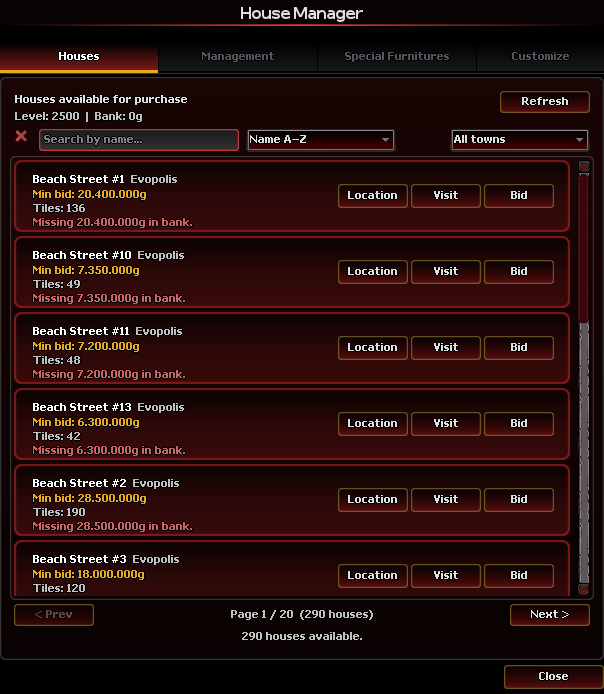
In order to first access the House Manager interface, you must own your own house or to have a few permissions on house managing on someone else's house. To buy a house, you must simply find the House icon at the Others menu. There you may find a list of all currently unowned houses for you to bid to. Once successfully purchased, you will then be able to do your house managing.
Once inside your house, a green button will appear at the bottom of your screen. Clicking on it will prompt about all house-related features that you can edit.

¶ Management
In this tab you will manage what happens on your house: guest lists, permissions, house storage and more.
¶ Access List
In this section, you can invite who has access to your house. Simply type the nickname of the player you wish to invite and press "Add".
¶ Door Permission
Here you can edit who can open and close all of the doors in your house. By clicking on Edit, simply add the desired player to be able to open and close that specific door. If there are too many doors, you can also press the Locate button to highlight it on your screen.
¶ Players in House
In here you can see all of the current players that are inside your house. Clicking on the X near their portraits will proceed to kick them out of the house.
¶ Kick Player
In this section you can type a player's name to kick them out of your house.
¶ House Storage
The house storage is where you can store decoration kits for your house. You can buy them separately and store them by dragging them inside the window, or, if you by it directly from the House Manager, it will automatically go there. Simply choose to take them out if you wish to decorate, or decorate through the Decorate tab, which will be further explained later.
¶ Permissions
Similarly to a guild rank, you can setup roles with different sets of permissions to give out to your guests, if you so wish. You can mix and match any permissions you see fit and name them however you want.
¶ Transfer House
This is used when you want to transfer your house to someone else, similarly to trading them. You and the receiver must be standing next to each other for this to happen. All of your items will be sent to your mailbox.
¶ Special Furniture
This is where you manage your Special Furniture.
¶ Customize
The customize tab is a new way of customizing your houses. Much simpler and intuitive than the normal way, this allows for quick and snappy placing of decorations however you see fit. Select any decorations you wish to use. If you do not own them, simply click on the desired one and click on the Buy More button. You may then click on the Paint Mode button to turn it on. Then, click on the desired decoration and move your cursor to the desired placement and simply left click and your decoration will appear.
Removing is done by the same way, but with the Remove Mode, instead. Items removed will automatically go to your house storage.